Assign Assets
The term Asset refers to any of the objects or elements used to create the content for a Mailing. Distributed Marketing utilizes several different types of Assets, such as Templates, Images, and Snippets, for example.
Distributed Marketing organizes a company into a structure called the Client Hierarchy. This Hierarchy consists of between one and five levels, with potentially one to many Entities defined at each level. The Client Hierarchy is primarily used to control and manage access to the platform's various Assets.
Distributed Marketing uses three general methods for assigning Assets to the Client Hierarchy:
-
Global assets are defined at the top-most Client level, and are always available to every Entity in the entire Client Hierarchy.
-
Define an Asset at an Entity level, then make specific associations to Entities lower in the Hierarchy.
-
Assign an Asset to an Entity, thus making it available to every Entity lower in the Hierarchy.
Global
Global assets are always defined at the top-most Client level, and are always available to every Entity within the entire Client Hierarchy. The following Assets are considered "global" Assets:
-
Categories
-
Text Editor Versions
Define, then Associate
The Define, then Associate method of Asset management is used for the following types of Assets:
-
Templates
-
Snippets
-
Brands
For these Asset types, you define the Asset to some Entity in the Client Hierarchy. You can then optionally associate the Asset to one or more Entities lower in the Hierarchy.
Note: Once you define an Asset to an Entity, you can't later move it someplace else. Generally speaking, the best practice is to define an Asset at the highest-possible Entity.
Within the Define, then Associate method, the system utilizes two distinct approaches: Cascade Downward and Restricted.
Cascade Downward
With the Cascade Downward approach, access to an Asset automatically "cascades" downward by default from the assigned Entity, making it available to every Entity lower in the Client Hierarchy. Optionally, you can override the default setting, and associate the Asset with only one or more specific Entities lower in the Hierarchy. Templates and Snippets utilize this approach.
-
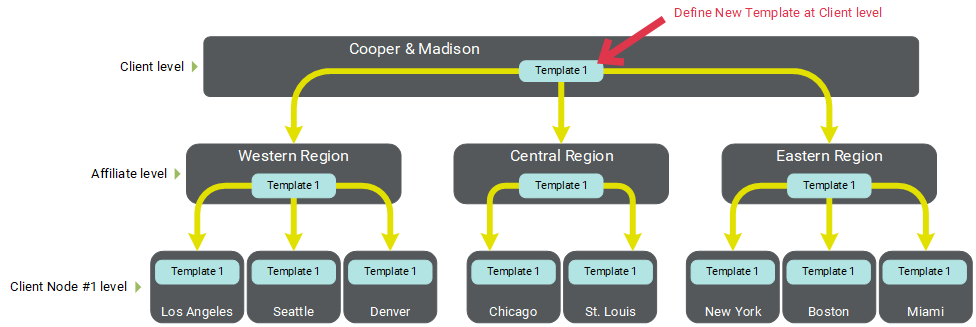
Example #1: In this example, Cooper & Madison has an email Template that needs to be available to everyone in the entire organization, so the Template is defined at the Client level. By default, access to this Asset cascades downward, meaning this Template will be available to every Affiliate and Client Node with no further configuration needed.
-
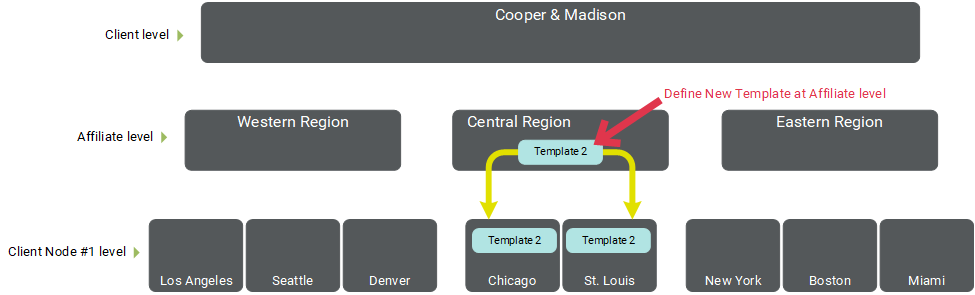
Example #2: Cooper & Madison has a second Template that needs to be available only to Client Nodes within the Central region. Therefore, the new Template is assigned to the "Central Region" Affiliate. By default, access to this Asset cascades downward, meaning this Template will now be available to all the Client Nodes beneath the "Central Region" Entity (that is, "Chicago" and "St. Louis") with no further configuration needed.
-
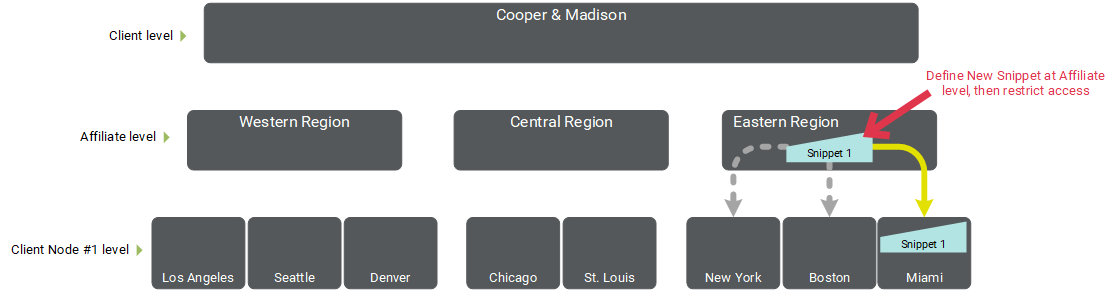
Example #3: Cooper & Madison has a new Snippet that needs to be available to ONLY the "Miami" Client Node. Therefore, this new Snippet is assigned to the "Eastern Region" Affiliate. By default, this Snippet would be accessible to every Client Node beneath this Affiliate. Instead, the Snippet is manually configured to be associated with only the "Miami" Client Node.
Restricted
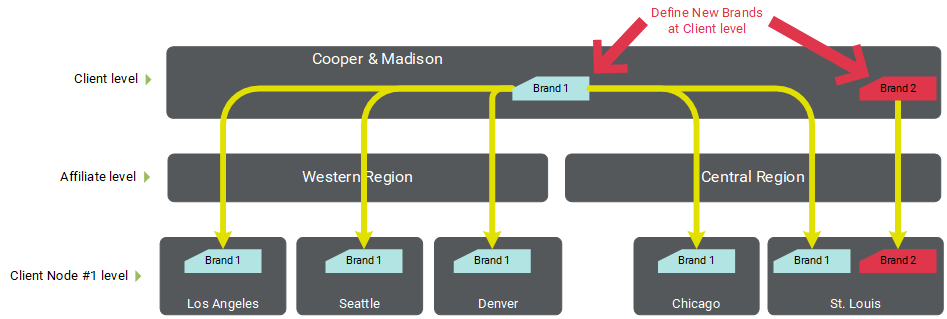
With the Restricted approach, access to an Asset is restricted by default, until an Administrator makes the explicit connection to the appropriate Entities in the Hierarchy. Brands are the only Asset to utilize this approach.
-
Example: Cooper & Madison has two new Brands that they want to be able to use when building a Mailing. The first Brand needs to be available to every Client Node. The Brand is defined at the Client-level, then manually associated with every Client Node. The second Brand is unique to only the "St. Louis" Client Node. The Brand is defined at the Client-level, then manually associated with just "St. Louis."
Assign to an Entity
The Assign to a Entity method of Asset management is used for the following types of Assets:
-
Images
-
Links
For these Asset types, the Asset is assigned to a specific Entity. Every Entity lower in the Hierarchy will then be able to access that Asset. This method does not provide you with the same flexibility as the Define, then associate method described above. Instead, with the Assign to a Entity method, access to a given Asset always cascades downward to every Entity lower in the Hierarchy, with no further custom configuration allowed.
Note: Once you assign an Asset to an Entity, you can't later move it someplace else. Generally speaking, the best practice is to assign the Asset at the highest-possible Entity.
-
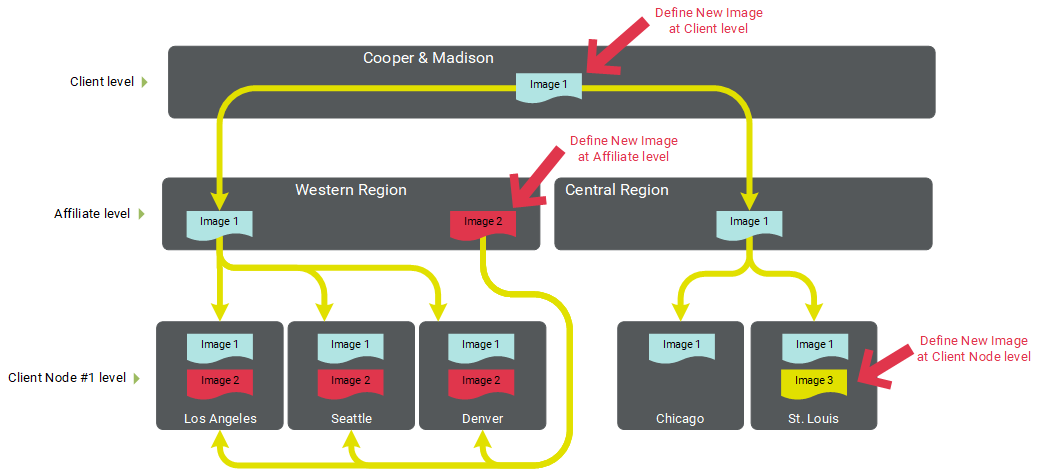
Example: Cooper & Madison has three new Images, with different access restrictions needed per Image.
-
Image 1 needs to be available to everyone, so this Image is assigned at the top-most Client level. Access to this Image cascades down to the entire Hierarchy.
-
Image 2 needs to be available to just the Western Region, so the Image is assigned to the "Western Region" Affiliate. Access to this Image cascades down to the Entities beneath "Western Region."
-
Image 3 needs to be available to only St. Louis, so the Image is assigned to the "St. Louis" Client Node
-